> ## Documentation Index
> Fetch the complete documentation index at: https://ngquct-worktree-statusbar-redesign.mintlify.site/llms.txt
> Use this file to discover all available pages before exploring further.
# MCP Server
> Built-in Model Context Protocol server that exposes TablePro to AI clients
# MCP Server
TablePro includes a built-in [Model Context Protocol](https://modelcontextprotocol.io) (MCP) server that lets AI clients query your databases through TablePro's saved connections. The MCP server is one of three pillars of the [External API](/external-api/index), alongside the URL scheme and the pairing flow.
This page covers the in-app **Settings > Integrations** UI. For protocol details, see the External API section.
JSON-RPC tools, input and output schemas.
Read-only resources for connection metadata, schema, and history.
Scopes, allowlists, expiry, revocation.
One-click flow to issue a token to an extension.
Stdio MCP setup for Claude Desktop, Claude Code, Cursor, Cline, Continue, Zed, Windsurf, Goose, and custom clients.
Reference extension that uses URL scheme, MCP, and pairing.
## Enabling the server
The MCP server lazy-starts on first use. Pairing an extension or hitting `tablepro://integrations/start-mcp` from the bundled `tablepro-mcp` CLI starts the server on demand. You do not have to flip a toggle in Settings beforehand.
When the server starts, it picks a free port in the `51000-52000` range and writes a handshake file at `~/Library/Application Support/TablePro/mcp-handshake.json`. The `tablepro-mcp` CLI and the Raycast extension read this file to find the port; you do not need to configure it manually.
To start it manually or keep it running between launches, open **Settings > Integrations** and toggle **Enable MCP Server**.
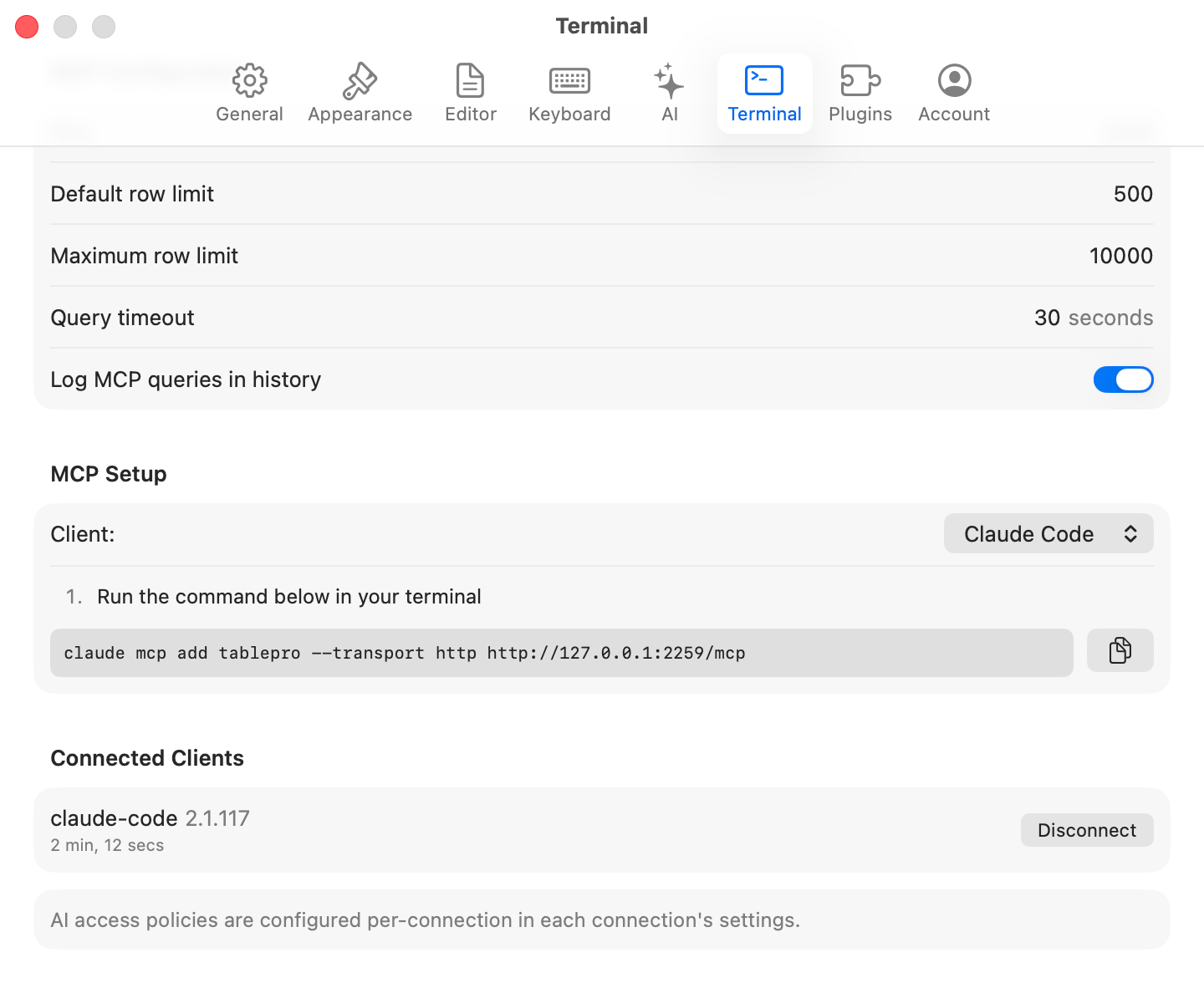
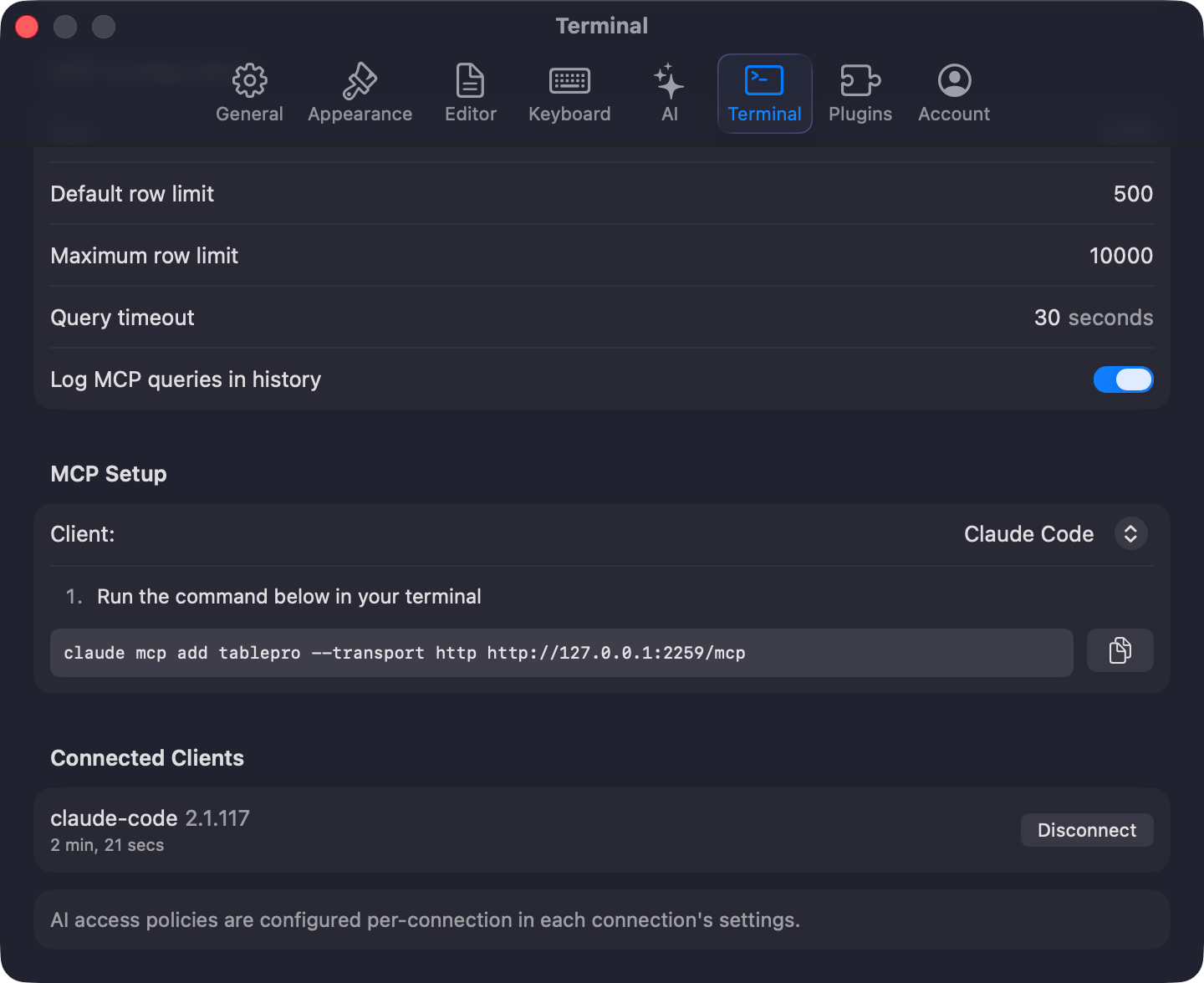 Settings on the same tab:
* **Default row limit** (default 500)
* **Maximum row limit** (default 10,000)
* **Query timeout** (default 30 seconds)
* **Log MCP queries in history** (show MCP queries in Query History)
## MCP setup snippets
**Settings > Integrations > MCP Setup** writes the config for popular clients in one click:
* **Setup for Claude Code** uses the stdio bridge, no token needed.
* **Setup for Claude Desktop** writes to `~/Library/Application Support/Claude/claude_desktop_config.json`.
* **Setup for Cursor** writes to `~/.cursor/mcp.json`.
For manual configuration, see [MCP Clients](/external-api/mcp-clients). The HTTP transport requires a token; see [Tokens](/external-api/tokens).
## Authentication
Tokens are managed under **Settings > Integrations > Authentication**. The pairing flow, scopes, allowlists, expiry, and revocation are documented in [Tokens](/external-api/tokens).
When **Require authentication** is off and the server is bound to localhost only, requests from your own machine are accepted without a bearer token. Remote connections always require a token. Turning **Require authentication** on for the first time creates a default token, writes it to disk, and shows it once so you can copy it; existing tokens are left untouched.
The activity log under **Settings > Integrations > Activity Log** shows every authentication, tool call, and resource read with the token id, category, action, connection, and outcome. Entries are kept for 90 days.
## Remote access
The MCP server is localhost-only by default. Toggle **Remote access** under **Settings > Integrations > Network** to accept connections from other machines.
Enabling remote access automatically requires authentication and TLS.
### Connection options
**Tailscale** (recommended): install on both machines and connect via the Tailscale IP.
```
https://100.x.y.z:/mcp
```
**SSH tunnel**: forward the port. No TLS trust setup needed because the connection stays local on the remote side.
```bash theme={null}
ssh -R :127.0.0.1: user@remote-server
```
The remote side connects to `http://127.0.0.1:/mcp` through the tunnel.
**Direct LAN**: connect using the Mac's IP. The client must trust the TLS certificate (see below).
```
https://192.168.1.x:/mcp
```
macOS firewall allows TablePro automatically (Developer ID signed).
## TLS
When remote access is enabled, TablePro generates a self-signed certificate valid for 1 year.
* The SHA-256 fingerprint shows in **Settings > Integrations > Network**.
* **Copy Certificate (PEM)** exports the certificate for client trust stores.
* **Regenerate** creates a new certificate (invalidates existing trust).
Connect with PEM:
```bash theme={null}
curl --cacert tablepro-mcp.pem https://192.168.1.x:/mcp
```
Connect with fingerprint pinning:
```bash theme={null}
curl --pinnedpubkey "sha256//FINGERPRINT" https://192.168.1.x:/mcp
```
## Origin and DNS rebinding protection
The server validates the `Origin` header against `localhost`, `127.0.0.1`, and `::1`. Browsers and DNS-rebinding tricks cannot reach the API even when remote access is off.
## What the server cannot access
| Capability | State |
| ------------------------------------------------------------------ | ----- |
| Read connection passwords | no |
| Read SSH keys | no |
| Read license data | no |
| Read app settings | no |
| Read local files outside `~/Library/Application Support/TablePro/` | no |
| Mutate Safe Mode rules | no |
The reachable surface is the [tool catalog](/external-api/mcp-tools) and the [URL scheme](/external-api/url-scheme).
## Troubleshooting
**Port conflict**: the server picks a different free port from the `51000-52000` range on next launch. The handshake file is rewritten.
**"Server not fully initialized"**: restart the MCP server from Settings. If it persists, relaunch TablePro.
**App must be running**: the MCP server only runs while TablePro is open. The stdio bridge fires `tablepro://integrations/start-mcp` to launch the app on cold start.
**Connection refused**: check the green status indicator in **Settings > Integrations**. Verify the URL and port match the handshake file.
**`401 Unauthorized`**: the token is missing, expired, or revoked. Generate a new one in **Settings > Integrations > Authentication**, or run the pair command in your extension.
**`403 Forbidden`**: the token's allowlist excludes the connection, the connection's `externalAccess` is `blocked`, or the SQL is a write against a `readOnly` connection.
**Certificate trust error**: export the PEM from **Settings > Integrations > Network** and add it to your client's trust store, or use fingerprint pinning.
**`429 Too Many Requests`**: 5 failed auth attempts within 60 seconds against the same `(client_address, principal)` pair triggers a 5-minute lockout. A successful auth clears the bucket.
**Protocol errors**: MCP protocol errors come back as readable messages (for example "Invalid JSON-RPC request" instead of `invalidRequest`). The text in the response body and the activity log is what to act on.
Settings on the same tab:
* **Default row limit** (default 500)
* **Maximum row limit** (default 10,000)
* **Query timeout** (default 30 seconds)
* **Log MCP queries in history** (show MCP queries in Query History)
## MCP setup snippets
**Settings > Integrations > MCP Setup** writes the config for popular clients in one click:
* **Setup for Claude Code** uses the stdio bridge, no token needed.
* **Setup for Claude Desktop** writes to `~/Library/Application Support/Claude/claude_desktop_config.json`.
* **Setup for Cursor** writes to `~/.cursor/mcp.json`.
For manual configuration, see [MCP Clients](/external-api/mcp-clients). The HTTP transport requires a token; see [Tokens](/external-api/tokens).
## Authentication
Tokens are managed under **Settings > Integrations > Authentication**. The pairing flow, scopes, allowlists, expiry, and revocation are documented in [Tokens](/external-api/tokens).
When **Require authentication** is off and the server is bound to localhost only, requests from your own machine are accepted without a bearer token. Remote connections always require a token. Turning **Require authentication** on for the first time creates a default token, writes it to disk, and shows it once so you can copy it; existing tokens are left untouched.
The activity log under **Settings > Integrations > Activity Log** shows every authentication, tool call, and resource read with the token id, category, action, connection, and outcome. Entries are kept for 90 days.
## Remote access
The MCP server is localhost-only by default. Toggle **Remote access** under **Settings > Integrations > Network** to accept connections from other machines.
Enabling remote access automatically requires authentication and TLS.
### Connection options
**Tailscale** (recommended): install on both machines and connect via the Tailscale IP.
```
https://100.x.y.z:/mcp
```
**SSH tunnel**: forward the port. No TLS trust setup needed because the connection stays local on the remote side.
```bash theme={null}
ssh -R :127.0.0.1: user@remote-server
```
The remote side connects to `http://127.0.0.1:/mcp` through the tunnel.
**Direct LAN**: connect using the Mac's IP. The client must trust the TLS certificate (see below).
```
https://192.168.1.x:/mcp
```
macOS firewall allows TablePro automatically (Developer ID signed).
## TLS
When remote access is enabled, TablePro generates a self-signed certificate valid for 1 year.
* The SHA-256 fingerprint shows in **Settings > Integrations > Network**.
* **Copy Certificate (PEM)** exports the certificate for client trust stores.
* **Regenerate** creates a new certificate (invalidates existing trust).
Connect with PEM:
```bash theme={null}
curl --cacert tablepro-mcp.pem https://192.168.1.x:/mcp
```
Connect with fingerprint pinning:
```bash theme={null}
curl --pinnedpubkey "sha256//FINGERPRINT" https://192.168.1.x:/mcp
```
## Origin and DNS rebinding protection
The server validates the `Origin` header against `localhost`, `127.0.0.1`, and `::1`. Browsers and DNS-rebinding tricks cannot reach the API even when remote access is off.
## What the server cannot access
| Capability | State |
| ------------------------------------------------------------------ | ----- |
| Read connection passwords | no |
| Read SSH keys | no |
| Read license data | no |
| Read app settings | no |
| Read local files outside `~/Library/Application Support/TablePro/` | no |
| Mutate Safe Mode rules | no |
The reachable surface is the [tool catalog](/external-api/mcp-tools) and the [URL scheme](/external-api/url-scheme).
## Troubleshooting
**Port conflict**: the server picks a different free port from the `51000-52000` range on next launch. The handshake file is rewritten.
**"Server not fully initialized"**: restart the MCP server from Settings. If it persists, relaunch TablePro.
**App must be running**: the MCP server only runs while TablePro is open. The stdio bridge fires `tablepro://integrations/start-mcp` to launch the app on cold start.
**Connection refused**: check the green status indicator in **Settings > Integrations**. Verify the URL and port match the handshake file.
**`401 Unauthorized`**: the token is missing, expired, or revoked. Generate a new one in **Settings > Integrations > Authentication**, or run the pair command in your extension.
**`403 Forbidden`**: the token's allowlist excludes the connection, the connection's `externalAccess` is `blocked`, or the SQL is a write against a `readOnly` connection.
**Certificate trust error**: export the PEM from **Settings > Integrations > Network** and add it to your client's trust store, or use fingerprint pinning.
**`429 Too Many Requests`**: 5 failed auth attempts within 60 seconds against the same `(client_address, principal)` pair triggers a 5-minute lockout. A successful auth clears the bucket.
**Protocol errors**: MCP protocol errors come back as readable messages (for example "Invalid JSON-RPC request" instead of `invalidRequest`). The text in the response body and the activity log is what to act on.