> ## Documentation Index
> Fetch the complete documentation index at: https://ngquct-worktree-statusbar-redesign.mintlify.site/llms.txt
> Use this file to discover all available pages before exploring further.
# iCloud Sync
> Sync connections, table favorites, settings, and SSH profiles across Macs via iCloud (Pro feature)
# iCloud Sync
TablePro syncs your connections, groups, table favorites, settings, and SSH profiles across all your Macs via CloudKit. iCloud Sync is a Pro feature that requires an active license.
## What syncs (and what doesn't)
| Data | Synced | Notes |
| ---------------------- | -------- | --------------------------------------------------------------------------------------------------------------------------------------- |
| **Connections** | Yes | Host, port, username, database type, SSH/SSL config |
| **Passwords** | Optional | Opt-in via iCloud Keychain (end-to-end encrypted) |
| **Groups & Tags** | Yes | Full connection organization, including nested group hierarchy (parent-child relationships and sort order) |
| **Table Favorites** | Yes | Favorited table names shown in the Favorites tab and pinned in table lists |
| **App Settings** | Yes | All settings categories (General, Appearance, Editor, Keyboard, AI, Terminal) |
| **Linked SQL Folders** | No | Folder paths are per-Mac. Link the same Git repo on each Mac after cloning. Cached file metadata (`linked_sql_index.db`) is also local. |
Passwords are not synced by default. Enable **Password sync** under the Connections toggle to sync passwords via Apple's iCloud Keychain (end-to-end encrypted). With password sync off, you need to enter the password once on each new Mac.
## Enabling iCloud Sync
Open **Settings** (`Cmd+,`) > **Account**, toggle iCloud Sync on, choose which categories to sync, and click **Sync Now**. Sync is off by default.
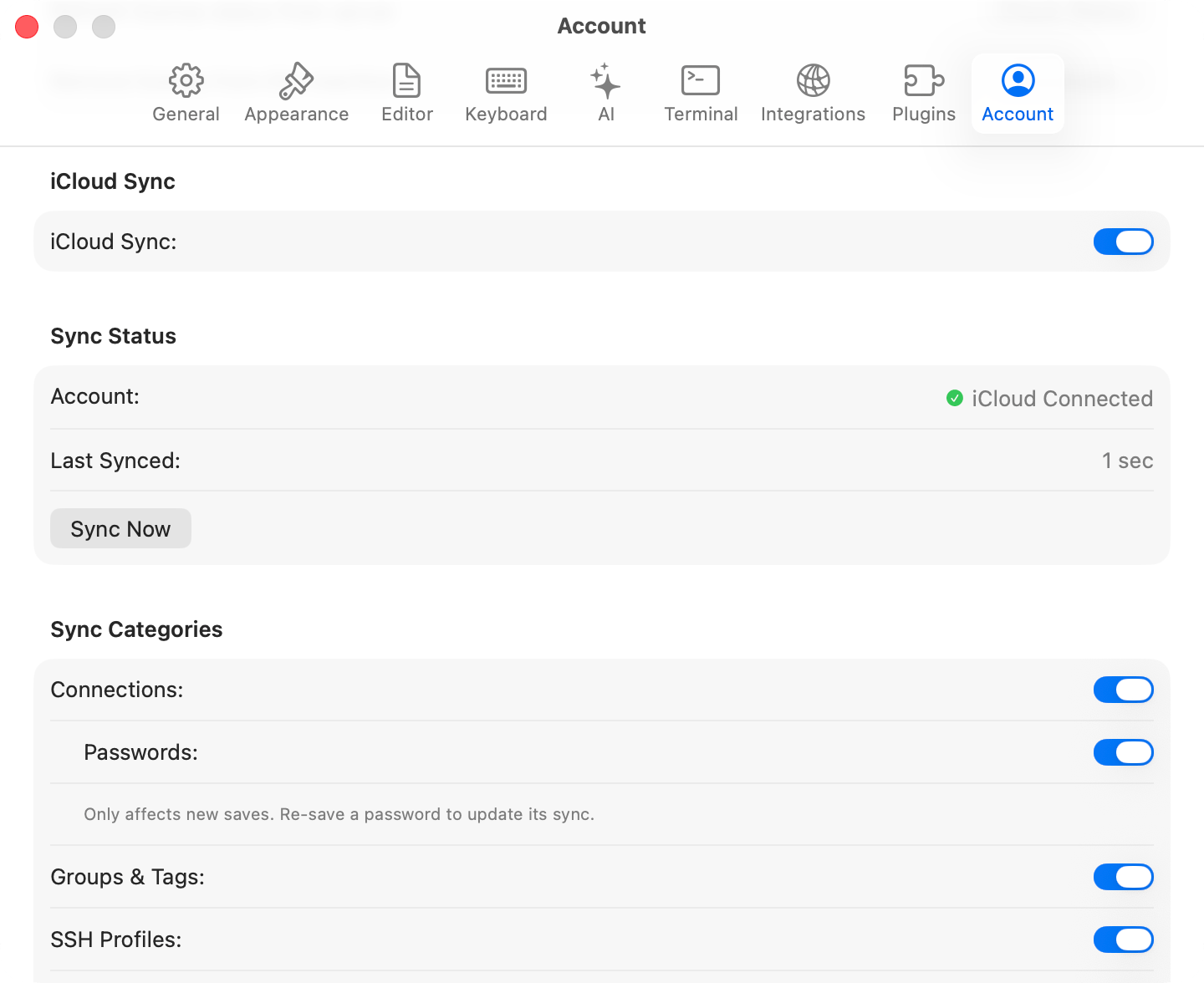
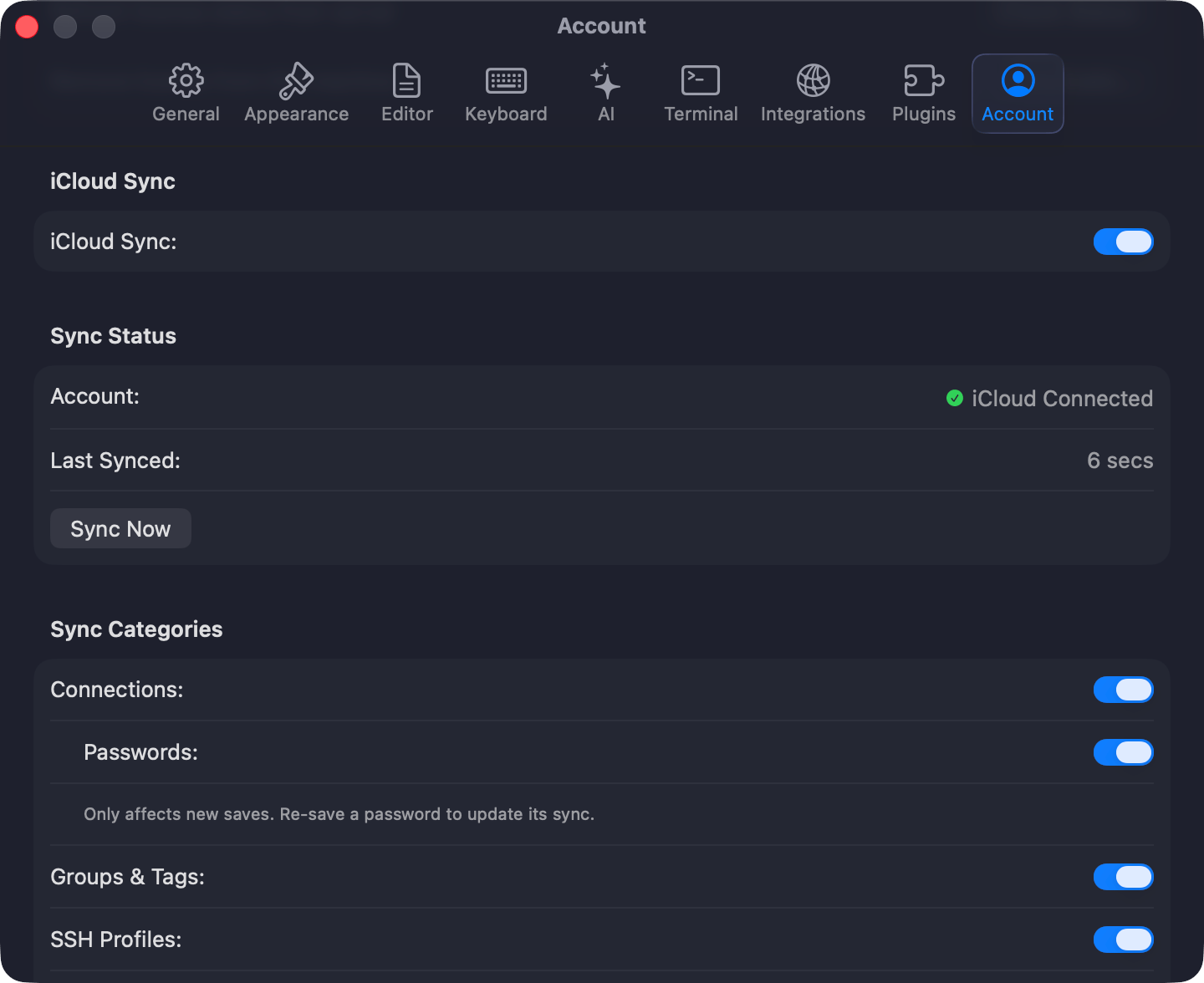 Connections, Groups & Tags, SSH Profiles, and App Settings each have their own toggle. Table favorites sync when iCloud Sync is enabled.
## Excluding individual connections
Some connections (e.g., localhost, dev databases) don't make sense on other devices. Mark them as **Local only** to keep them off iCloud:
* **Connection form**: open the **Advanced** tab and toggle **Local only**
* **Context menu**: right-click a connection and choose **Exclude from iCloud Sync**
Local-only connections show an `icloud.slash` icon in the sidebar. The flag is preserved when duplicating or exporting connections.
TablePro auto-syncs on app launch, when you switch back to it, and 2 seconds after you modify synced data.
When the same record changes on two Macs, you choose to keep the local or remote version. Conflicts are per-record, not per-category.
iCloud Sync requires a Pro license. When a license expires, sync stops but local data remains. Re-activate your license to resume.
## Troubleshooting
If no records sync, confirm iCloud is signed in and iCloud Drive is enabled, then click **Sync Now**. For "iCloud account unavailable," sign in via **System Settings** > **Apple Account**.
Connections, Groups & Tags, SSH Profiles, and App Settings each have their own toggle. Table favorites sync when iCloud Sync is enabled.
## Excluding individual connections
Some connections (e.g., localhost, dev databases) don't make sense on other devices. Mark them as **Local only** to keep them off iCloud:
* **Connection form**: open the **Advanced** tab and toggle **Local only**
* **Context menu**: right-click a connection and choose **Exclude from iCloud Sync**
Local-only connections show an `icloud.slash` icon in the sidebar. The flag is preserved when duplicating or exporting connections.
TablePro auto-syncs on app launch, when you switch back to it, and 2 seconds after you modify synced data.
When the same record changes on two Macs, you choose to keep the local or remote version. Conflicts are per-record, not per-category.
iCloud Sync requires a Pro license. When a license expires, sync stops but local data remains. Re-activate your license to resume.
## Troubleshooting
If no records sync, confirm iCloud is signed in and iCloud Drive is enabled, then click **Sync Now**. For "iCloud account unavailable," sign in via **System Settings** > **Apple Account**.