> ## Documentation Index
> Fetch the complete documentation index at: https://ngquct-worktree-statusbar-redesign.mintlify.site/llms.txt
> Use this file to discover all available pages before exploring further.
# Data Grid
> Spreadsheet-style grid with inline editing, type-specific editors, and copy in TSV/CSV/JSON formats
# Data Grid
Query results and table contents render in a spreadsheet-style grid. Edit cells inline, sort columns, copy in multiple formats, and paginate through large result sets.

 ## Viewing Data
The header shows row count, execution time, and affected rows for UPDATE/DELETE queries.
### View Modes
Toggle between **Data**, **Structure**, and **JSON** in the status bar. Query tabs show Data and JSON only.
JSON mode renders all rows as a JSON array. Toggle between Text and Tree views in the toolbar. To export only specific rows, select them in Data mode first, then switch to JSON. The Copy JSON button writes to the clipboard. View mode is remembered per tab.
### Foreign Key Navigation
Foreign key cells show an arrow on the right edge. Click it to open the referenced table, filtered to the matching row. A plain click uses the current tab; `Cmd`-click opens a new tab.
Right-click the cell for the same options plus **Preview Referenced Row**, which shows the row in a popover.
## Column Features
### Resizing Columns
* Drag column borders to resize
* Double-click a border to auto-fit column width
* Column widths are remembered per table
### Sorting Data
Click a column header to sort:
* **First click**: Sort ascending (A-Z, 0-9)
* **Second click**: Sort descending (Z-A, 9-0)
* **Third click**: Remove sort
By default tables open in engine order (no `ORDER BY`). To always sort by primary key or first column on open, set Settings > Data Grid > Default row sort. Options are **No sorting** (default), **Primary key**, and **First column**. Tables without a primary key fall back to engine order even when Primary key is selected. Click a column header at any time to replace the default sort.
If the resolved sort column is not orderable on the server (for example a `BLOB`, `JSON`, or spatial column with First column selected), the query fails. Switch the setting back to No sorting, or click a different column header.
Sort applies to the full result. TablePro re-runs the query with `ORDER BY` appended; if your query already has an `ORDER BY`, it is replaced.
## Viewing Data
The header shows row count, execution time, and affected rows for UPDATE/DELETE queries.
### View Modes
Toggle between **Data**, **Structure**, and **JSON** in the status bar. Query tabs show Data and JSON only.
JSON mode renders all rows as a JSON array. Toggle between Text and Tree views in the toolbar. To export only specific rows, select them in Data mode first, then switch to JSON. The Copy JSON button writes to the clipboard. View mode is remembered per tab.
### Foreign Key Navigation
Foreign key cells show an arrow on the right edge. Click it to open the referenced table, filtered to the matching row. A plain click uses the current tab; `Cmd`-click opens a new tab.
Right-click the cell for the same options plus **Preview Referenced Row**, which shows the row in a popover.
## Column Features
### Resizing Columns
* Drag column borders to resize
* Double-click a border to auto-fit column width
* Column widths are remembered per table
### Sorting Data
Click a column header to sort:
* **First click**: Sort ascending (A-Z, 0-9)
* **Second click**: Sort descending (Z-A, 9-0)
* **Third click**: Remove sort
By default tables open in engine order (no `ORDER BY`). To always sort by primary key or first column on open, set Settings > Data Grid > Default row sort. Options are **No sorting** (default), **Primary key**, and **First column**. Tables without a primary key fall back to engine order even when Primary key is selected. Click a column header at any time to replace the default sort.
If the resolved sort column is not orderable on the server (for example a `BLOB`, `JSON`, or spatial column with First column selected), the query fails. Switch the setting back to No sorting, or click a different column header.
Sort applies to the full result. TablePro re-runs the query with `ORDER BY` appended; if your query already has an `ORDER BY`, it is replaced.

 ### Hiding Columns
Toggle columns on or off from the columns button in the status bar, or a column header's right-click menu. Hidden columns are remembered per table.
A hidden column is also left out of the query, so it isn't fetched. If a table is slow to open because one column holds a lot of data, hide that column and the table loads faster. Showing it again re-runs the query to load it. The primary key is always fetched, so editing and saving keep working even if you hide it.
## Data Editing
### Inline Editing
To edit a cell:
1. Double-click the cell
2. Enter the new value
3. Press `Enter` to confirm or `Escape` to cancel
### Hiding Columns
Toggle columns on or off from the columns button in the status bar, or a column header's right-click menu. Hidden columns are remembered per table.
A hidden column is also left out of the query, so it isn't fetched. If a table is slow to open because one column holds a lot of data, hide that column and the table loads faster. Showing it again re-runs the query to load it. The primary key is always fetched, so editing and saving keep working even if you hide it.
## Data Editing
### Inline Editing
To edit a cell:
1. Double-click the cell
2. Enter the new value
3. Press `Enter` to confirm or `Escape` to cancel

 ### Date/Time Picker
Date, datetime, timestamp, and time columns have a date picker. Double-click the cell to edit the value as text, or click the chevron button to open the picker, which shows a calendar for the date and hour, minute, and second fields for the time. `DATE` shows the calendar only; `TIME` shows the time fields only; `DATETIME` and `TIMESTAMP` show both. The picker keeps the value's existing format, fractional seconds, and timezone offset. An empty or unparseable cell starts at the current date and time. To set the current timestamp or `NULL`, right-click the cell and use Set Value.
### Date/Time Picker
Date, datetime, timestamp, and time columns have a date picker. Double-click the cell to edit the value as text, or click the chevron button to open the picker, which shows a calendar for the date and hour, minute, and second fields for the time. `DATE` shows the calendar only; `TIME` shows the time fields only; `DATETIME` and `TIMESTAMP` show both. The picker keeps the value's existing format, fractional seconds, and timezone offset. An empty or unparseable cell starts at the current date and time. To set the current timestamp or `NULL`, right-click the cell and use Set Value.

 ### Foreign Key Lookup
Foreign key columns open a searchable dropdown with values from the referenced table (e.g., `1 - John Doe`). Type to filter, double-click or press `Enter` to commit. Fetches up to 1,000 values; use the search field to narrow larger sets.
### Foreign Key Lookup
Foreign key columns open a searchable dropdown with values from the referenced table (e.g., `1 - John Doe`). Type to filter, double-click or press `Enter` to commit. Fetches up to 1,000 values; use the search field to narrow larger sets.

 ### Boolean Cell Editor
BOOLEAN, BIT, and TINYINT(1) cells open a checkbox popover. Click to toggle, `Enter` to commit, `Escape` to cancel. Nullable columns support a third indeterminate state (NULL).
| Database | Column Types | Values |
| ------------- | ---------------------- | ---------------- |
| MySQL/MariaDB | `TINYINT(1)`, `BIT(1)` | `0` / `1` |
| PostgreSQL | `BOOLEAN` | `TRUE` / `FALSE` |
| SQLite | `INTEGER` | `0` / `1` |
### Boolean Cell Editor
BOOLEAN, BIT, and TINYINT(1) cells open a checkbox popover. Click to toggle, `Enter` to commit, `Escape` to cancel. Nullable columns support a third indeterminate state (NULL).
| Database | Column Types | Values |
| ------------- | ---------------------- | ---------------- |
| MySQL/MariaDB | `TINYINT(1)`, `BIT(1)` | `0` / `1` |
| PostgreSQL | `BOOLEAN` | `TRUE` / `FALSE` |
| SQLite | `INTEGER` | `0` / `1` |

 ### ENUM Column Editor
ENUM cells open a searchable dropdown. Click a value to select and commit. Nullable columns show a NULL option at the top.
| Database | ENUM Source |
| ------------- | ------------------------------------ |
| MySQL/MariaDB | Native `ENUM` type |
| PostgreSQL | User-defined enum types (`pg_enum`) |
| SQLite | `CHECK(column IN (...))` constraints |
### ENUM Column Editor
ENUM cells open a searchable dropdown. Click a value to select and commit. Nullable columns show a NULL option at the top.
| Database | ENUM Source |
| ------------- | ------------------------------------ |
| MySQL/MariaDB | Native `ENUM` type |
| PostgreSQL | User-defined enum types (`pg_enum`) |
| SQLite | `CHECK(column IN (...))` constraints |

 ### SET Column Editor
SET cells (MySQL/MariaDB) open a checkbox popover. Check/uncheck values, then press `Enter` to commit or `Escape` to cancel.
If ENUM/SET metadata is unavailable (e.g., from a complex query), the cell falls back to inline text editing.
### SET Column Editor
SET cells (MySQL/MariaDB) open a checkbox popover. Check/uncheck values, then press `Enter` to commit or `Escape` to cancel.
If ENUM/SET metadata is unavailable (e.g., from a complex query), the cell falls back to inline text editing.

 ### JSON Viewer
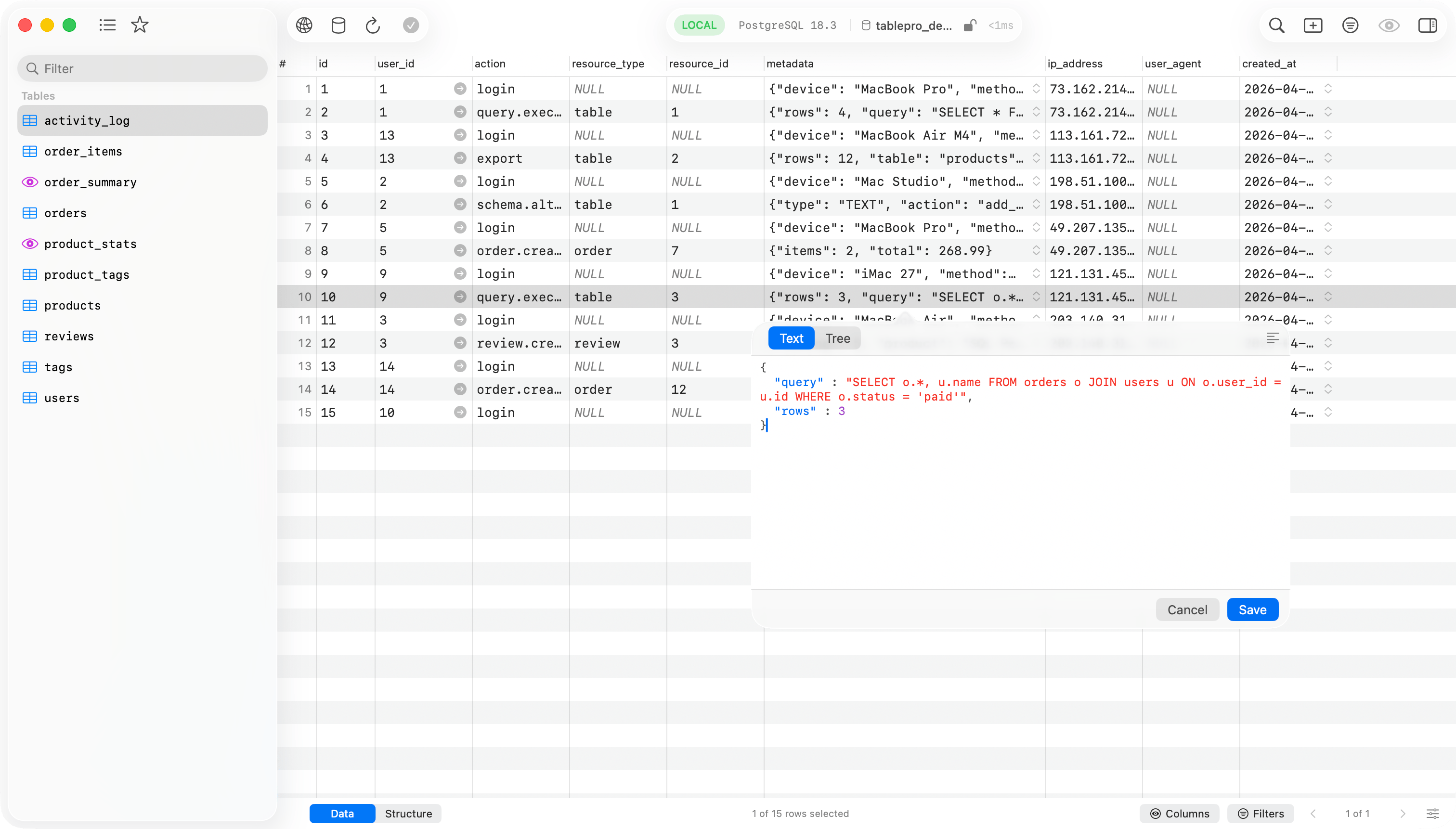
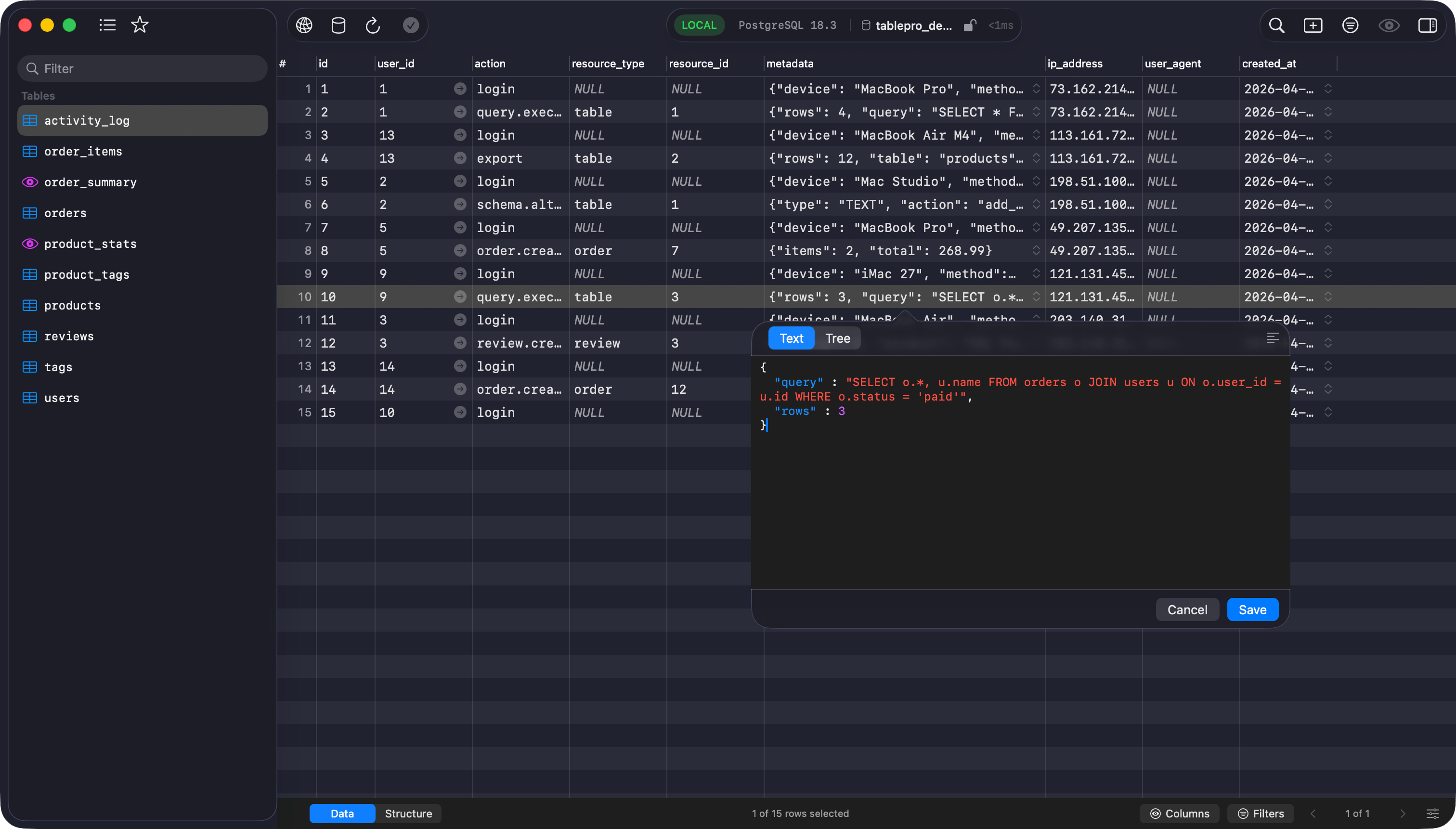
Click the chevron in a JSON cell to open the viewer. Double-click or `Enter` edits the value inline instead. Switch between **Text** and **Tree** modes with the toggle at the top.
Text mode shows syntax-highlighted JSON with brace matching. Tree mode shows a collapsible outline you can search, expand/collapse all, and right-click to copy values or key paths like `$.users[0].email`.
JSON is minified on save. Invalid JSON falls back to text mode.
### JSON Viewer
Click the chevron in a JSON cell to open the viewer. Double-click or `Enter` edits the value inline instead. Switch between **Text** and **Tree** modes with the toggle at the top.
Text mode shows syntax-highlighted JSON with brace matching. Tree mode shows a collapsible outline you can search, expand/collapse all, and right-click to copy values or key paths like `$.users[0].email`.
JSON is minified on save. Invalid JSON falls back to text mode.
 ### Hex Editor (BLOB/Binary)
BLOB, BINARY, and VARBINARY cells open a hex editor popover. Edit as space-separated hex bytes (e.g., `48 65 6C 6C 6F`). Invalid input is highlighted in red as you type. The Cell Inspector sidebar also offers hex editing.
BLOBs larger than 10 KB are read-only. Use an external hex editor for large binary data.
### Multi-Row Editing
Select multiple rows with `Cmd+click` (non-contiguous) or `Shift+click` (range) on row numbers. Press `Delete` to remove selected rows.
### Hex Editor (BLOB/Binary)
BLOB, BINARY, and VARBINARY cells open a hex editor popover. Edit as space-separated hex bytes (e.g., `48 65 6C 6C 6F`). Invalid input is highlighted in red as you type. The Cell Inspector sidebar also offers hex editing.
BLOBs larger than 10 KB are read-only. Use an external hex editor for large binary data.
### Multi-Row Editing
Select multiple rows with `Cmd+click` (non-contiguous) or `Shift+click` (range) on row numbers. Press `Delete` to remove selected rows.

 ### Fill Column
Right-click a column header and choose **Fill Column** to set one value across all loaded rows at once. Enter the value in the dialog, or check **Set to NULL** for nullable columns. The dialog shows how many rows it will set.
Fill stages the change like any other edit, so review it with **Preview SQL** and **Commit** (`Cmd+S`) to apply, or **Discard** to drop it. `Cmd+Z` reverses the whole fill in one step. It only affects the rows currently loaded in the grid, not rows on other pages, and is not available on primary key columns.
### Saving Changes
Changes are queued, not applied immediately. Manage pending changes with:
* **Preview SQL**: Click the **Preview SQL** button (eye icon) or press `Cmd+Shift+P` to review pending SQL statements before committing
* **Commit**: Click the **Commit** button (or press `Cmd+S`) to apply all pending changes
* **Discard**: Click the **Discard** button to revert all pending changes
* **Undo/Redo**: Press `Cmd+Z` to undo or `Cmd+Shift+Z` to redo individual edits before committing
See [Change Tracking](/features/change-tracking) for full details on how changes are queued and applied.
Editing is available for simple `SELECT * FROM table` queries. Complex queries with joins or aggregations are read-only.
### Adding and Deleting Rows
Click the **+** button to add a new row, or select row(s) and press `Delete` to remove them. Changes are queued until you click **Commit**.
## Change Indicators
Pending changes get visual feedback:
* **Modified cells** are highlighted with a distinct background color
* **New rows** display an insertion indicator
* **Deleted rows** display a deletion indicator
* The **toolbar** shows the count of pending changes
## Cell Inspector
The Cell Inspector is a right sidebar panel showing detailed information about the selected row or current table. Toggle with `Cmd+Shift+B` or via **View** > **Toggle Cell Inspector**.
### Fill Column
Right-click a column header and choose **Fill Column** to set one value across all loaded rows at once. Enter the value in the dialog, or check **Set to NULL** for nullable columns. The dialog shows how many rows it will set.
Fill stages the change like any other edit, so review it with **Preview SQL** and **Commit** (`Cmd+S`) to apply, or **Discard** to drop it. `Cmd+Z` reverses the whole fill in one step. It only affects the rows currently loaded in the grid, not rows on other pages, and is not available on primary key columns.
### Saving Changes
Changes are queued, not applied immediately. Manage pending changes with:
* **Preview SQL**: Click the **Preview SQL** button (eye icon) or press `Cmd+Shift+P` to review pending SQL statements before committing
* **Commit**: Click the **Commit** button (or press `Cmd+S`) to apply all pending changes
* **Discard**: Click the **Discard** button to revert all pending changes
* **Undo/Redo**: Press `Cmd+Z` to undo or `Cmd+Shift+Z` to redo individual edits before committing
See [Change Tracking](/features/change-tracking) for full details on how changes are queued and applied.
Editing is available for simple `SELECT * FROM table` queries. Complex queries with joins or aggregations are read-only.
### Adding and Deleting Rows
Click the **+** button to add a new row, or select row(s) and press `Delete` to remove them. Changes are queued until you click **Commit**.
## Change Indicators
Pending changes get visual feedback:
* **Modified cells** are highlighted with a distinct background color
* **New rows** display an insertion indicator
* **Deleted rows** display a deletion indicator
* The **toolbar** shows the count of pending changes
## Cell Inspector
The Cell Inspector is a right sidebar panel showing detailed information about the selected row or current table. Toggle with `Cmd+Shift+B` or via **View** > **Toggle Cell Inspector**.

 ### Row Details Mode
When a row is selected, the inspector shows all column values with full content:
* Search columns by name
* TEXT/VARCHAR columns get a multi-line editor
* JSON/JSONB columns show a compact preview with an expand button for the full JSON viewer
* Edits here are queued like inline edits
### Table Info Mode
When no row is selected, the inspector shows table metadata: name, row count, storage size, creation date, engine, charset, and collation.
Read-Only Safe Mode connections and complex query results are not editable. See [Safe Mode](/features/safe-mode).
## Keyboard Navigation
Use arrow keys to move between cells. Press `Enter` to edit, `Escape` to cancel. `Tab` / `Shift+Tab` move to the next/previous cell. `Cmd+Home` / `Cmd+End` jump to first/last row.
## Selecting & Copying
Click a cell to select it. Drag or Shift+click to select a range. Click row numbers for entire rows; Cmd+click for non-contiguous rows.
`Cmd+C` copies the focused cell value when a single row is selected and a cell has focus; otherwise it copies the selected row(s) as TSV. `Cmd+Shift+C` always copies the selected row(s) as TSV. `Cmd+Option+J` copies as JSON.
Right-click a row and choose **Copy as** for additional formats:
| Format | Description |
| ------------------- | ---------------------------------------------------------------------------------------------- |
| Cell Value | The clicked cell's content |
| With Headers | TSV with the column names as the first line |
| JSON | A JSON array of row objects |
| CSV | RFC 4180 CSV; empty fields for NULL |
| CSV with Headers | Same as CSV with the header row prepended |
| Markdown | GitHub-flavored Markdown table |
| IN Clause | `('a', 'b', 'c')` from the clicked column across selected rows, ready for `WHERE col IN (...)` |
| INSERT Statement(s) | SQL INSERT for each row (SQL databases only) |
| UPDATE Statement(s) | SQL UPDATE for each row by primary key (SQL databases only) |
Right-click a column header and choose **Copy Column Values** to copy every loaded value in that column, one per line.
Copying rows reflects the grid as shown: hidden columns are left out and the columns follow their current order. Copy as UPDATE always keeps the primary key so the WHERE clause stays correct, even when that column is hidden.
### Row Details Mode
When a row is selected, the inspector shows all column values with full content:
* Search columns by name
* TEXT/VARCHAR columns get a multi-line editor
* JSON/JSONB columns show a compact preview with an expand button for the full JSON viewer
* Edits here are queued like inline edits
### Table Info Mode
When no row is selected, the inspector shows table metadata: name, row count, storage size, creation date, engine, charset, and collation.
Read-Only Safe Mode connections and complex query results are not editable. See [Safe Mode](/features/safe-mode).
## Keyboard Navigation
Use arrow keys to move between cells. Press `Enter` to edit, `Escape` to cancel. `Tab` / `Shift+Tab` move to the next/previous cell. `Cmd+Home` / `Cmd+End` jump to first/last row.
## Selecting & Copying
Click a cell to select it. Drag or Shift+click to select a range. Click row numbers for entire rows; Cmd+click for non-contiguous rows.
`Cmd+C` copies the focused cell value when a single row is selected and a cell has focus; otherwise it copies the selected row(s) as TSV. `Cmd+Shift+C` always copies the selected row(s) as TSV. `Cmd+Option+J` copies as JSON.
Right-click a row and choose **Copy as** for additional formats:
| Format | Description |
| ------------------- | ---------------------------------------------------------------------------------------------- |
| Cell Value | The clicked cell's content |
| With Headers | TSV with the column names as the first line |
| JSON | A JSON array of row objects |
| CSV | RFC 4180 CSV; empty fields for NULL |
| CSV with Headers | Same as CSV with the header row prepended |
| Markdown | GitHub-flavored Markdown table |
| IN Clause | `('a', 'b', 'c')` from the clicked column across selected rows, ready for `WHERE col IN (...)` |
| INSERT Statement(s) | SQL INSERT for each row (SQL databases only) |
| UPDATE Statement(s) | SQL UPDATE for each row by primary key (SQL databases only) |
Right-click a column header and choose **Copy Column Values** to copy every loaded value in that column, one per line.
Copying rows reflects the grid as shown: hidden columns are left out and the columns follow their current order. Copy as UPDATE always keeps the primary key so the WHERE clause stays correct, even when that column is hidden.

 ## Pagination
Table tabs paginate large result sets. The bottom bar shows the row range (e.g. `1-1,000 of ~111,559`) next to the First / Previous / Next / Last buttons, with a page indicator between them.
* **Rows per page**: click the row range to pick a preset (5, 10, 20, 100, 500, 1,000), enter a custom size, or choose **All rows** to load the whole table on one page. Loading all rows asks for confirmation first, since large tables use a lot of memory.
* **Page navigation**: jump to the first or last page, step one page at a time, or click the page indicator to go to a specific page.
* The bar also appears for filtered tables whose total row count is unknown. There the Next button stays available while a full page keeps loading, and the indicator shows the page number without a total.
Set the default page size in **Settings** > **Editor** (Small: 100, Medium: 500, Large: 1,000, Custom: any value from 10 to 100,000). Smaller pages load faster.
## Pagination
Table tabs paginate large result sets. The bottom bar shows the row range (e.g. `1-1,000 of ~111,559`) next to the First / Previous / Next / Last buttons, with a page indicator between them.
* **Rows per page**: click the row range to pick a preset (5, 10, 20, 100, 500, 1,000), enter a custom size, or choose **All rows** to load the whole table on one page. Loading all rows asks for confirmation first, since large tables use a lot of memory.
* **Page navigation**: jump to the first or last page, step one page at a time, or click the page indicator to go to a specific page.
* The bar also appears for filtered tables whose total row count is unknown. There the Next button stays available while a full page keeps loading, and the indicator shows the page number without a total.
Set the default page size in **Settings** > **Editor** (Small: 100, Medium: 500, Large: 1,000, Custom: any value from 10 to 100,000). Smaller pages load faster.

 ## Smart Value Detection
Auto-renders UUIDs and Unix timestamps in the grid when column type and name match:
| Column Type | Name Contains | Display |
| ------------------------- | -------------------------------------------------- | -------------------------------------- |
| `BINARY(16)` | `uuid`, `guid`, `_id` | `550e8400-e29b-41d4-a716-446655440000` |
| `CHAR(32)`, `VARCHAR(36)` | `uuid`, `guid` | UUID with hyphens |
| `INT`, `BIGINT` | `_at`, `_time`, `_timestamp`, `created`, `updated` | `2025-01-15 10:30:00` |
Right-click a column header > **Display As** to override per column. Overrides persist per connection and table. Toggle auto-detection in **Settings** > **Editor** > **Smart value detection**.
## NULL Values and Display
NULL values show as styled "NULL" text (customizable in **Settings** > **Editor**). Configure date format, row height, and alternate row colors in the same settings panel.
## Result Truncation
Query tabs cap results at 10,000 rows by default to keep the UI responsive on large queries. When the cap kicks in, the status bar shows a truncation marker and a Fetch All button:
## Smart Value Detection
Auto-renders UUIDs and Unix timestamps in the grid when column type and name match:
| Column Type | Name Contains | Display |
| ------------------------- | -------------------------------------------------- | -------------------------------------- |
| `BINARY(16)` | `uuid`, `guid`, `_id` | `550e8400-e29b-41d4-a716-446655440000` |
| `CHAR(32)`, `VARCHAR(36)` | `uuid`, `guid` | UUID with hyphens |
| `INT`, `BIGINT` | `_at`, `_time`, `_timestamp`, `created`, `updated` | `2025-01-15 10:30:00` |
Right-click a column header > **Display As** to override per column. Overrides persist per connection and table. Toggle auto-detection in **Settings** > **Editor** > **Smart value detection**.
## NULL Values and Display
NULL values show as styled "NULL" text (customizable in **Settings** > **Editor**). Configure date format, row height, and alternate row colors in the same settings panel.
## Result Truncation
Query tabs cap results at 10,000 rows by default to keep the UI responsive on large queries. When the cap kicks in, the status bar shows a truncation marker and a Fetch All button:
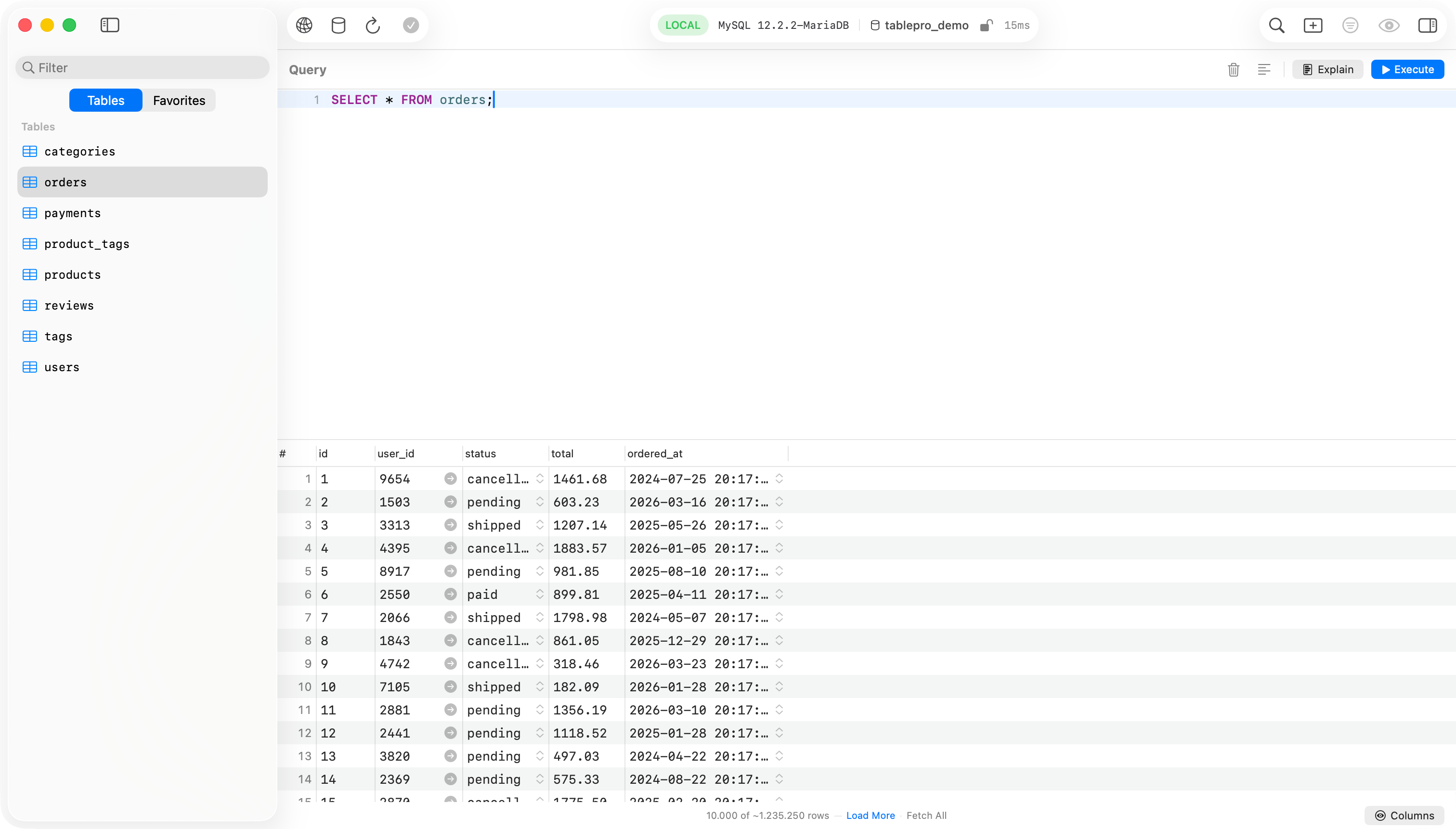
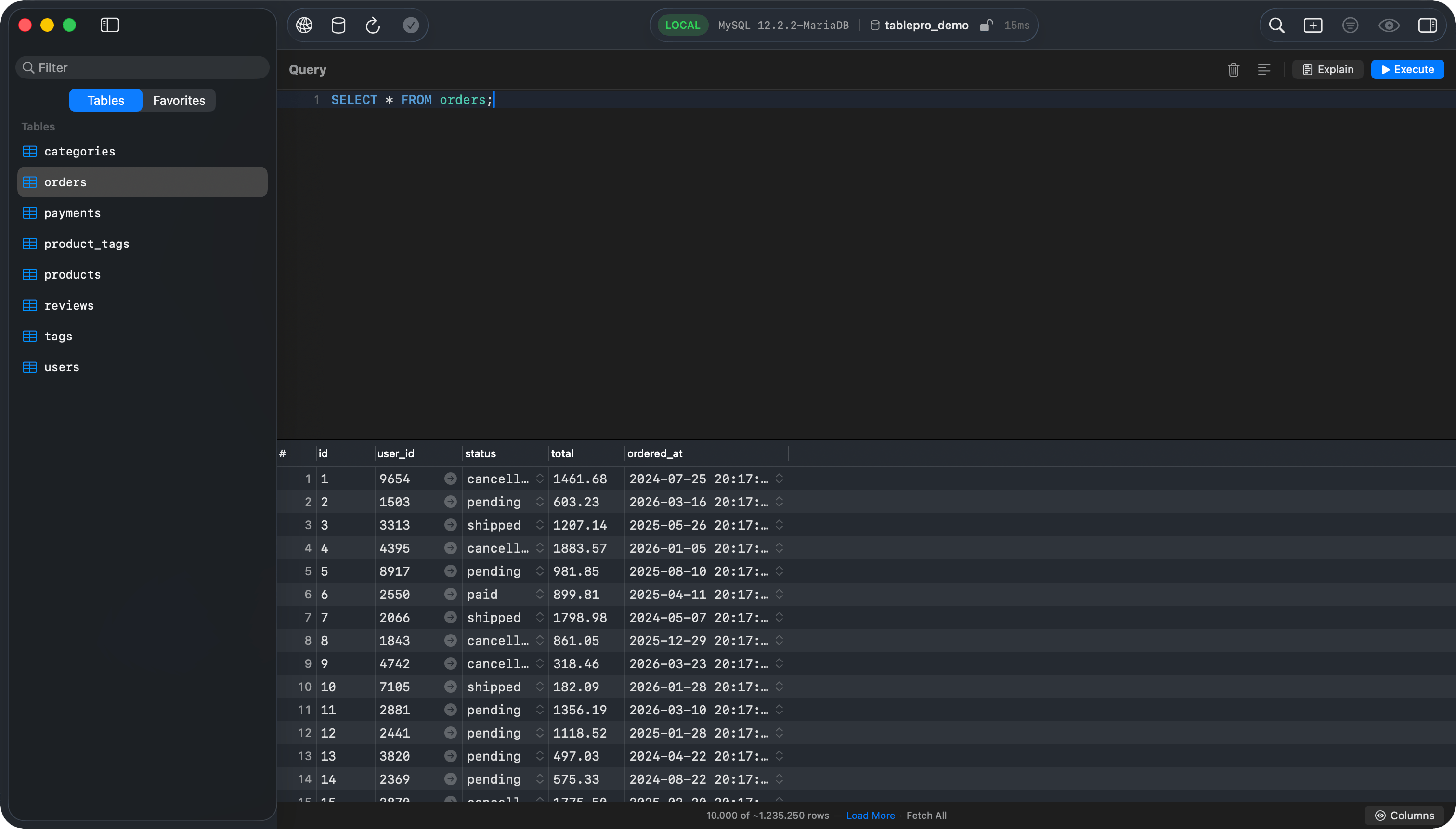 * **Showing N rows (truncated)** means the query returned more than the cap and the grid is showing the first N rows
* **Fetch All** re-runs the query without a cap. A confirmation appears first because large result sets use significant memory.
Your `LIMIT` and `OFFSET` are passed to the database unchanged. `SELECT ... LIMIT 10` returns 10 rows whether the cap is set or not. The cap only kicks in when the database returns more rows than your cap allows, which happens on queries with no `LIMIT` or with a `LIMIT` larger than the cap.
Configure the cap in **Settings** > **Editor**:
* **Truncate query results**: turns the cap on or off
* **Row cap**: 100 to 500,000, or 0 for unlimited
Table tabs are not affected by this setting. They use [Pagination](#pagination) instead.
### Cancelling
Press `Cmd+.` or click the stop button in the toolbar to cancel a running query or a Fetch All operation.
## MongoDB Collections
### Schema and Display
MongoDB has no fixed schema. TablePro infers columns by sampling up to 500 documents. Missing fields show as NULL. The `_id` column is read-only; delete and re-insert to change it.
BSON types display as: `ObjectId("...")`, ISO 8601 dates, `BinData(subtype, "base64...")`, decimal strings, `DBRef("collection", id)`.
### MQL Statement Preview
Changes preview as MongoDB shell commands:
* Inserts: `db.collection.insertMany([...])`
* Updates: `db.collection.updateOne({filter}, {$set: {...}})`
* Deletes: `db.collection.deleteMany({_id: {$in: [...]}})`
* **Showing N rows (truncated)** means the query returned more than the cap and the grid is showing the first N rows
* **Fetch All** re-runs the query without a cap. A confirmation appears first because large result sets use significant memory.
Your `LIMIT` and `OFFSET` are passed to the database unchanged. `SELECT ... LIMIT 10` returns 10 rows whether the cap is set or not. The cap only kicks in when the database returns more rows than your cap allows, which happens on queries with no `LIMIT` or with a `LIMIT` larger than the cap.
Configure the cap in **Settings** > **Editor**:
* **Truncate query results**: turns the cap on or off
* **Row cap**: 100 to 500,000, or 0 for unlimited
Table tabs are not affected by this setting. They use [Pagination](#pagination) instead.
### Cancelling
Press `Cmd+.` or click the stop button in the toolbar to cancel a running query or a Fetch All operation.
## MongoDB Collections
### Schema and Display
MongoDB has no fixed schema. TablePro infers columns by sampling up to 500 documents. Missing fields show as NULL. The `_id` column is read-only; delete and re-insert to change it.
BSON types display as: `ObjectId("...")`, ISO 8601 dates, `BinData(subtype, "base64...")`, decimal strings, `DBRef("collection", id)`.
### MQL Statement Preview
Changes preview as MongoDB shell commands:
* Inserts: `db.collection.insertMany([...])`
* Updates: `db.collection.updateOne({filter}, {$set: {...}})`
* Deletes: `db.collection.deleteMany({_id: {$in: [...]}})`